Get verified
Verify your PAN and bank account so you can run campaigns. It's checked instantly.
Before you can run campaigns, Loopearn checks who you are: your PAN, and a bank account in your name or your business's name. Cashfree, Loopearn's payment partner, does the checking while you wait. Nobody at Loopearn reviews it, so there's no waiting for approval. If your details pass, you're verified on the spot.
It takes a few minutes. Only the business owner can do it.
What it unlocks
Until you're verified:
- The Campaigns and Money tabs of Campaign Hub, and the marketplace listing page, are covered by a "Verify your business account" card with a Verify now button.
- The setup checklist's "Create your first campaign" step is locked ("Unlocks when verification is approved").
- You can't post announcements ("Verify your business to post on Loopearn.").
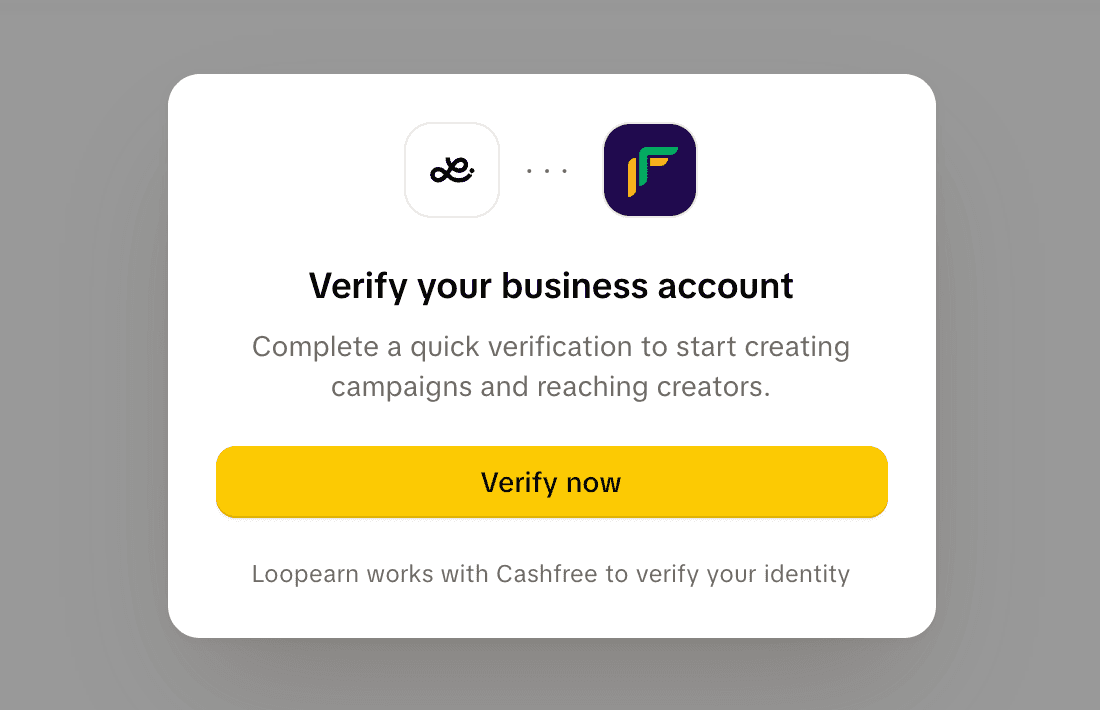
Once you're verified, all of that opens up, and your bank account becomes the one your refunds go to.
Cashback on bills and Deal Drop campaigns need one more thing: the UPI ID customers pay you on, in Settings › Payments. See Cashback and Deal Drops.
Before you start
Have these ready:
- Your PAN. Which PAN depends on your business:
- On your own, or a sole owner (Proprietorship): your personal PAN.
- HUF: the HUF's PAN.
- Partnership, LLP, Private Limited, Public Limited, Trust or Society: the business's own PAN, not a partner's or director's.
- The name exactly as on that PAN.
- Your GSTIN, if you have one. It's optional.
- Your business address, if you haven't added one yet. You can skip it.
- A bank account in the PAN's name or your business's name: the account number and IFSC.
Check your details here first. This box uses the same rules as the verification screens, and nothing you type leaves this page:
Type your details to check them. Nothing leaves this page.
This only checks what Loopearn checks before asking Cashfree. Cashfree still checks that your PAN is real and in this name, and that the bank account is in your PAN name or your business name.
Start verifying
Open it from any of these:
- Get verified in the setup checklist (Getting started in the sidebar, or the Get ready to launch card on Home).
- Verify now on the card covering Campaign Hub's Campaigns and Money tabs.
- Verify business in Settings › Payments.
The screens open full-screen with a progress bar at the top. The × in the top corner takes you back to your dashboard. Previous takes you back a screen.
1. Agree to the check
The first screen explains that Loopearn works with Cashfree to check your identity:
- You'll give your PAN and bank details.
- They go straight to Cashfree. Loopearn doesn't keep your PAN or bank account number, only the last 4 digits.
- You can ask Cashfree to delete your data at any time. There's a link to the Cashfree Privacy Policy.
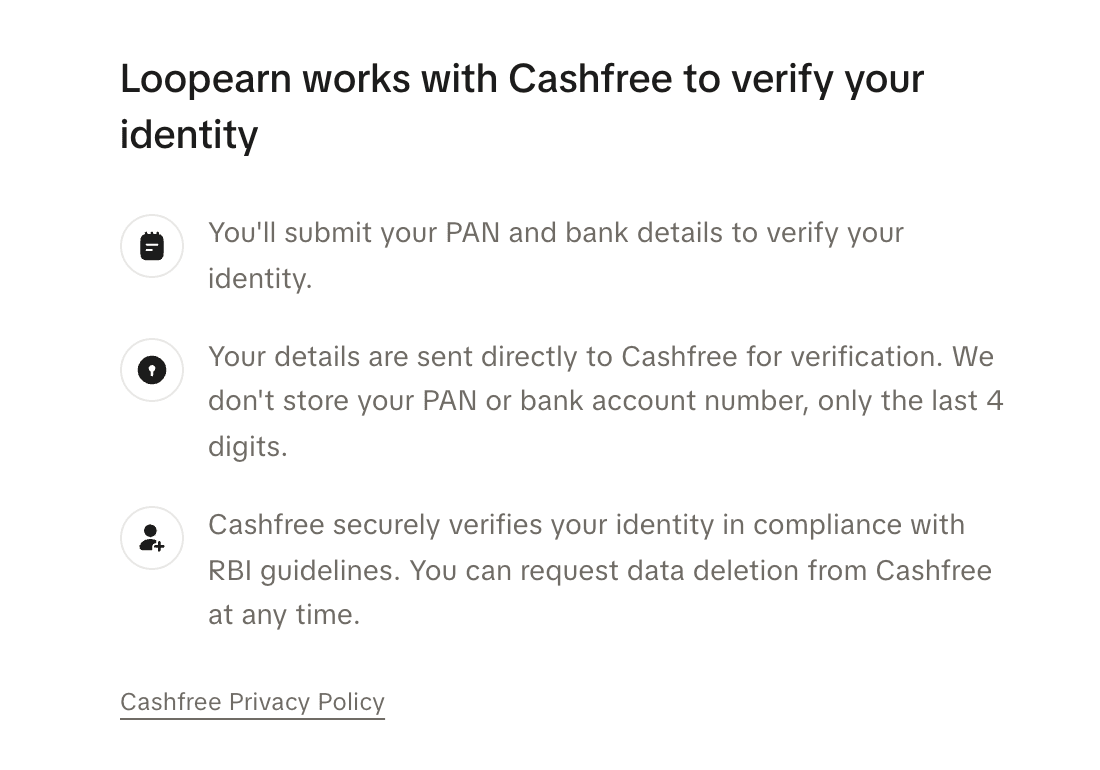
Click Agree and continue. (Decline takes you back to your dashboard.)
2. Business type
- Under Account type, pick Individual (the default) or Business.
- If you picked Business, pick your Business category: Proprietorship (the default), Partnership, LLP, Private Limited, Public Limited, Trust, Society or HUF.
- Click Continue.
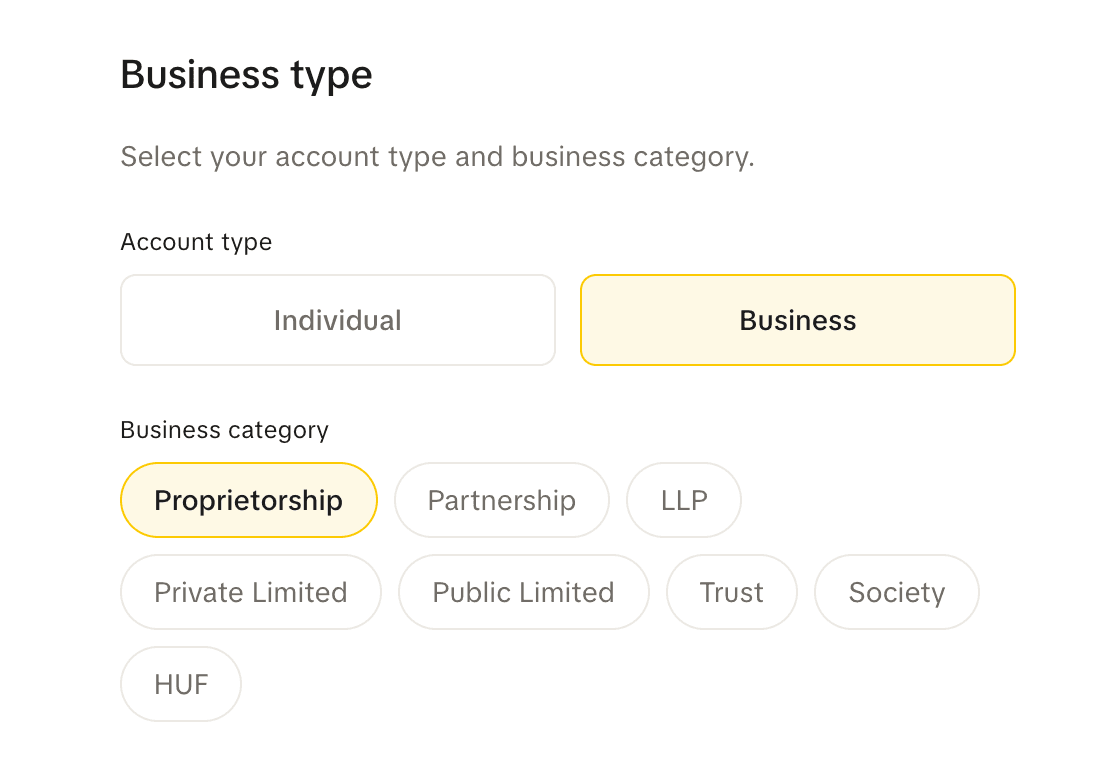
This decides which PAN you'll use on the next screen.
3. PAN and GST
- Type your PAN number: 10 characters, 5 letters, 4 digits and a letter, like ABCPV1234D. It turns into capitals as you type. If the pattern is wrong you'll see "Invalid PAN format. Expected: 5 letters, 4 digits, 1 letter."
- Type the Name as on PAN, exactly as it's printed (at least 2 characters).
- Add your GSTIN, or skip it:
- You have a GSTIN. Once your PAN is typed, Loopearn may list the GSTINs registered on it under "Registered on this PAN — tap to use:". Tap one, or type it in GSTIN (15 characters; characters 3 to 12 are your PAN). Then answer "Do you claim GST input credit?" with Yes or No. Say No if you're on the composition scheme, or you're a restaurant charging 5% GST.
- You don't. Click I don't have a GST registration. You'll see "Continuing without GST": you still pay 18% GST on money you add to your Campaign wallet, but you can't claim it back without a GSTIN on the invoice. Changed your mind? Click I have a GSTIN.
- Click Continue. Cashfree checks your PAN (and GSTIN) right away.
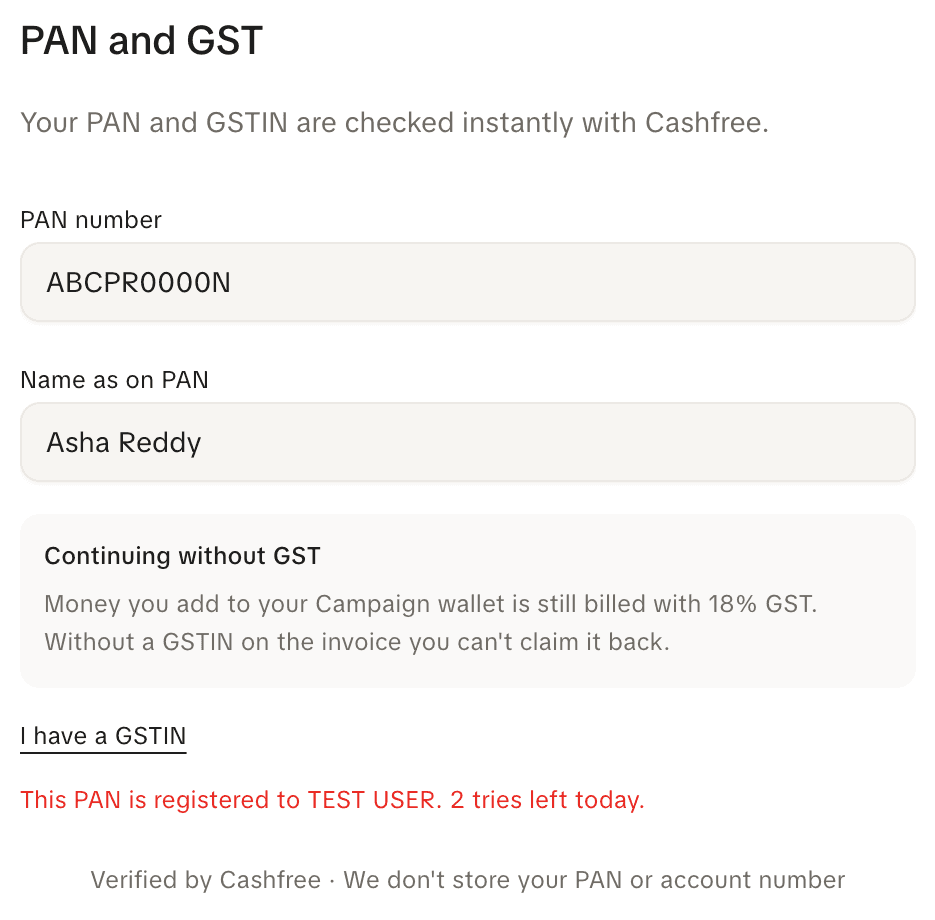
Why GST matters. Money you add to your Campaign wallet is billed with 18% GST. With your GSTIN on the invoice, you can claim that GST back if you're eligible. Your Yes/No answer decides whether unused money comes back with a credit note or a refund voucher. See Wallet and campaign money.
Skipped GST and want to add it later? The owner can open the Invoices card on your Plan page and click Add your GSTIN ("Skipped GST when you verified?"). It opens just the GSTIN check, and takes you to Campaigns when it passes. See Invoices.
4. Business address
This screen only appears if your business doesn't have an address yet. It's where customers redeem your deals and cashback.
- In Search, type your shop, street or area and pick it from the list. Or type it into Address line 1 (required), Area / street, City (required) and PIN Code.
- Click Continue. It's greyed out until the required boxes are filled in.
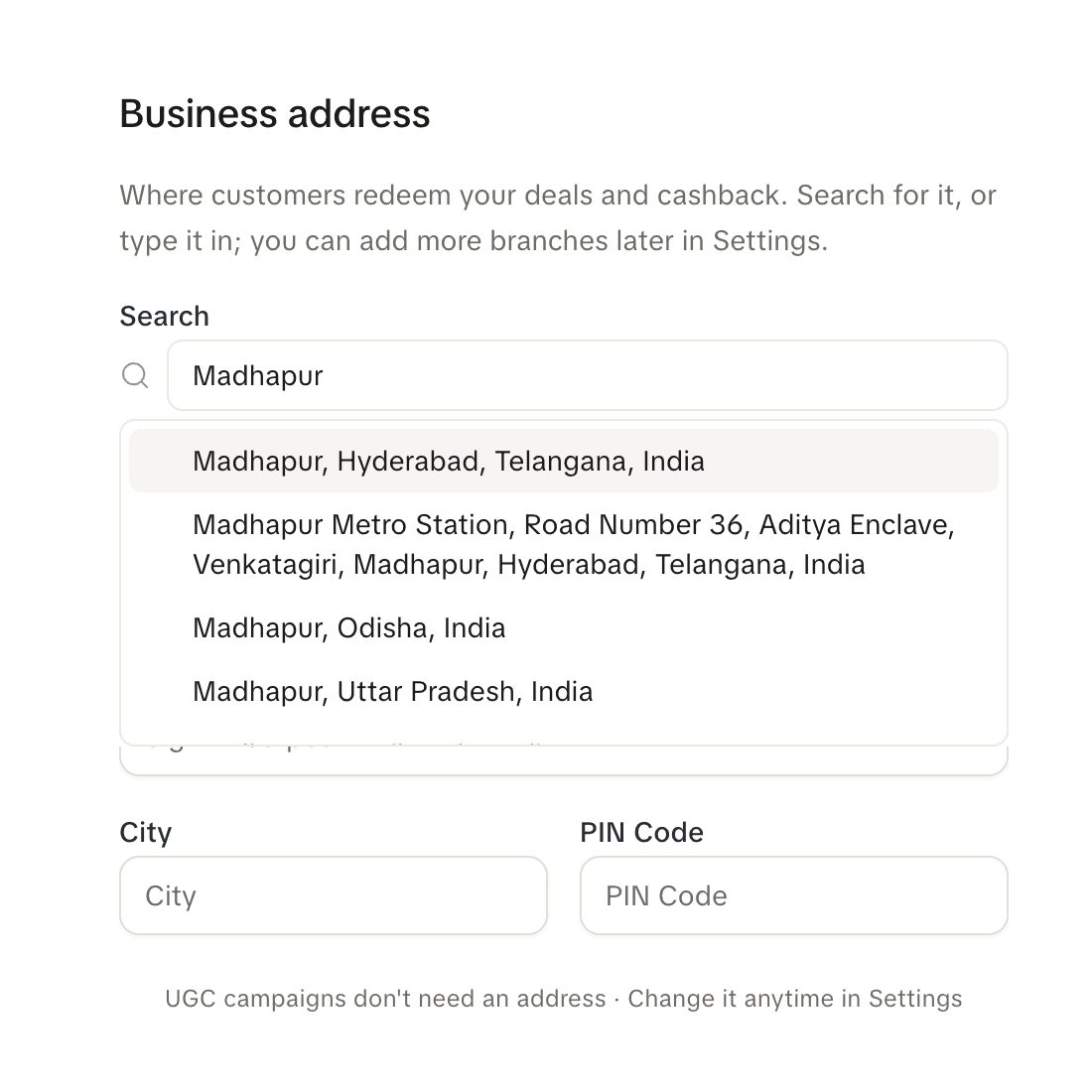
Don't need an address? Click Skip for now. Video campaigns don't need one, and you can add it any time in Settings › Locations. More on addresses in Add your location.
5. Bank details
- Type your Account number, then type it again in Confirm account number. Both are hidden as you type; click the eye to show them. You'll see "Account numbers match." or "Account numbers do not match."
- Type your IFSC code: 11 characters, like SBIN0001234. If the pattern is wrong you'll see "Invalid IFSC format."
- Click Verify & Submit.
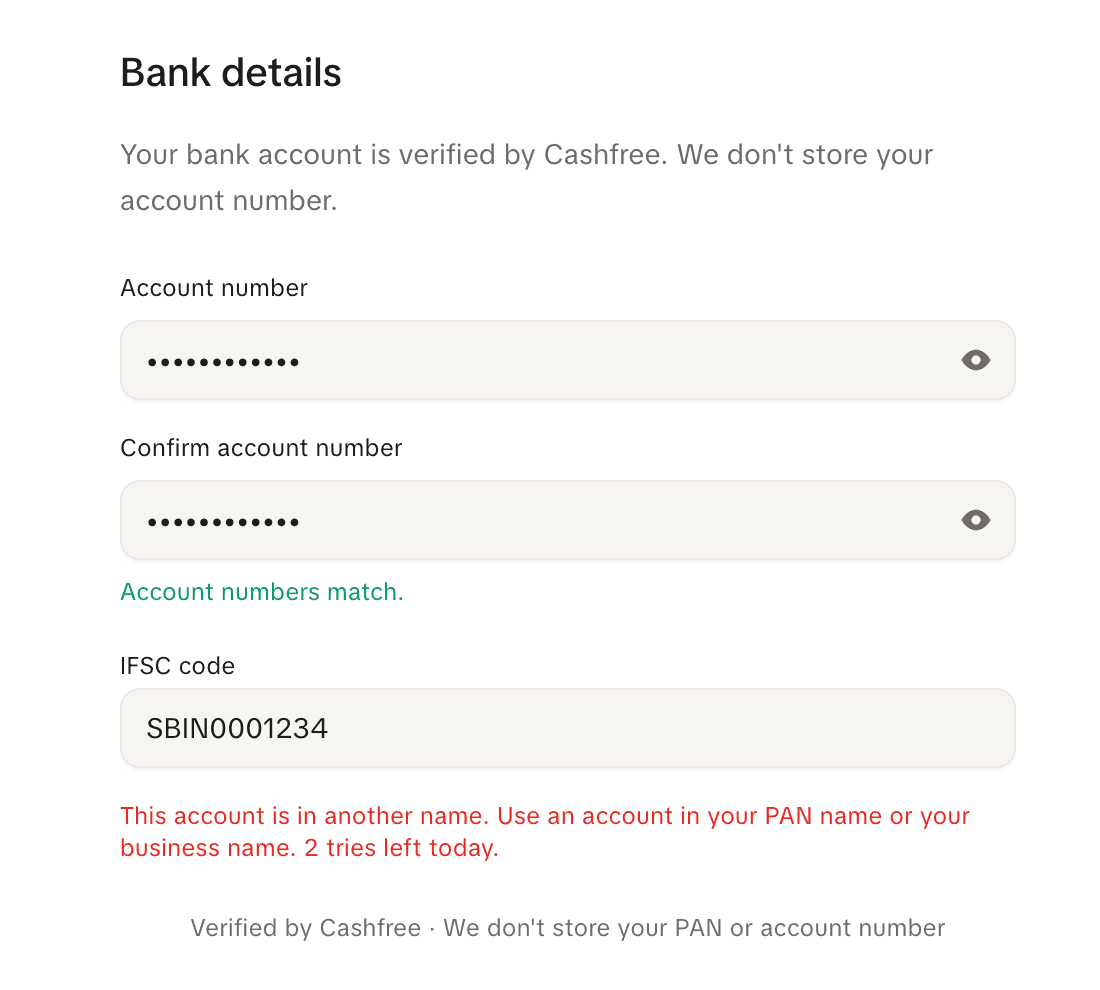
Cashfree checks that the account exists and that it's in your PAN name or your business name. If it's in someone else's name you'll see "This account is in another name. Use an account in your PAN name or your business name."
You're verified
When the bank account passes you see "Verified Business" and "You can run campaigns now.", with your PAN ending, your bank account ending and IFSC, and your business address (or "Skipped").
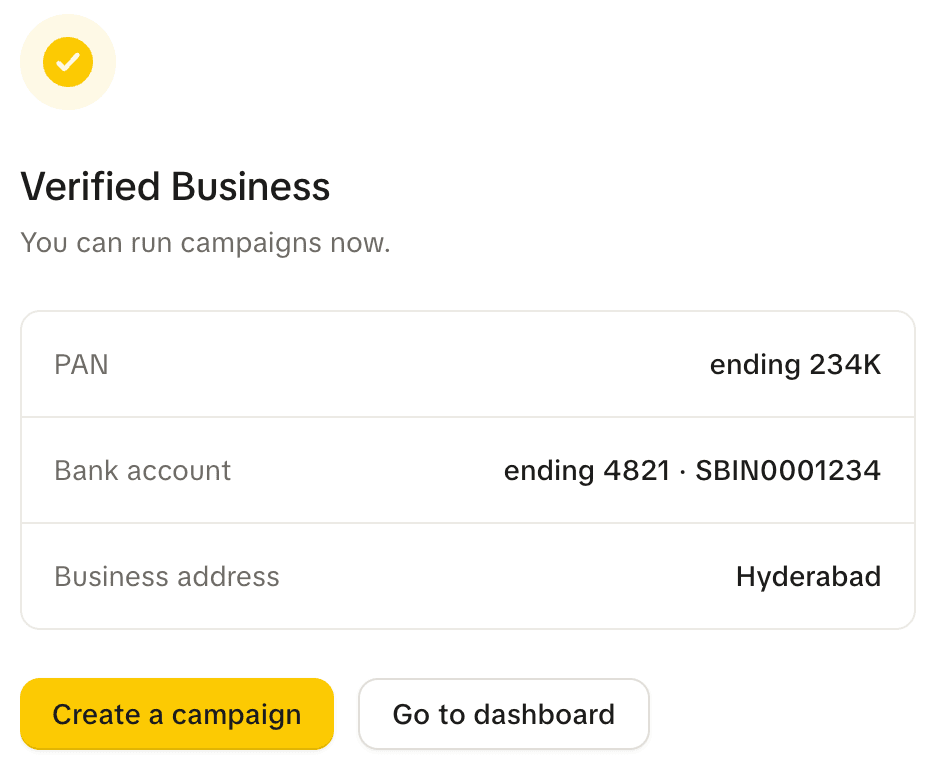
Click Create a campaign to start one, or Go to dashboard.
From now on:
- Refunds of money you take out of your wallet go to this bank account, and only this one.
- Money you add to your Campaign wallet has to come from this same account. See Wallet and campaign money.
Tries
Each check costs money to run, so you get 3 tries in any 24 hours for each one: the PAN check, the GSTIN check and the bank check each have their own 3. After a check that used a try, the message ends with how many are left, for example "2 tries left today."
When they're used up you'll see "You've used today's 3 tries. Try again tomorrow." Your tries come back 24 hours after you used them.
These don't use a try, because Loopearn spots them before asking Cashfree:
- A PAN, GSTIN or IFSC in the wrong pattern, or account numbers that don't match.
- A PAN that doesn't fit your business type.
- A GSTIN that isn't on the PAN you typed.
- Cashfree being down ("Verification is unavailable right now. Try again in a few minutes. This didn't use one of your tries.").
To save tries:
- Check your details in the box at the top of this page first.
- Do it all in one go. If you close the screens and come back later, your PAN is checked again, which uses a try.
- Finish the bank step within a day of your PAN passing. After that you'll see "Check your PAN first — it's been more than a day or it wasn't checked yet." and have to start again.
Change your bank account later
The owner can change the bank account any time:
- Open Settings, then Payments.
- Under Refunds you'll see "Bank ending …" and "IFSC … · refunds go here". Click Change.
- Enter the new account on the Bank details screen and click Verify & Submit.
The same rules apply: it has to be in your PAN name or your business name, and the check uses a try. Team members see "Only the business owner can change this."
Common problems
| What you see | What it means and what to do |
|---|---|
| "Invalid PAN format. Expected: 5 letters, 4 digits, 1 letter." | Check the PAN. It's 10 characters, like ABCPV1234D. |
| "This is a business PAN. Use your personal PAN, or pick the matching business type." | You picked Individual or Proprietorship but typed a business's PAN. Click Previous and pick the right business type, or use your personal PAN. |
| "This is a personal PAN. A [type] verifies with its own PAN." | Partnerships, LLPs, companies, trusts and societies use the business's own PAN. |
| "An HUF verifies with the HUF's own PAN." | Use the HUF's PAN, not a member's. |
| "This PAN isn't valid. Check the 10 characters." (or Cashfree's own message) | Cashfree doesn't know this PAN. Check for a typo. |
| "This PAN is registered to [name]." | The name you typed doesn't match. Type the name exactly as Cashfree shows it, as printed on the PAN. |
| "This PAN is already verified by another Loopearn account. If it's yours, contact support." | Someone else's Loopearn account already uses this PAN. If it's yours, contact Loopearn support. |
| "This GSTIN is registered on another PAN. Use the GSTIN on the PAN you verified." | The GSTIN must contain your PAN (characters 3 to 12). |
| "This GSTIN isn't registered. Check the 15 characters." (or Cashfree's own message) | Check the GSTIN for a typo, or skip GST. |
| "This GSTIN is cancelled. Use an active registration." (or suspended, and so on) | Only an active GSTIN can be used. Use another, or skip GST. |
| "This account is in another name. Use an account in your PAN name or your business name." | Use an account held in your PAN name or your business's name. |
| "We couldn't verify this bank account. Check the account number and IFSC." (or Cashfree's own message) | Check both and try again. |
| "Verification is unavailable right now. Try again in a few minutes. This didn't use one of your tries." | Cashfree is down. Wait a few minutes. |
| "You've used today's 3 tries. Try again tomorrow." | Wait 24 hours from your first try. |
| "Check your PAN first — it's been more than a day or it wasn't checked yet." | More than a day passed since your PAN check. Start again from the PAN screen. |
| "Only the business owner can perform this action." | Only the owner can verify. Ask them to do it. |
Need help? Email support@loopearn.com