Who sees your campaign
Choose who can see and join a video campaign, and where the work happens.
Every campaign has an audience: the people it's shown to in the Loopearn app. On UGC videos and Clipping campaigns, you choose the audience yourself in the “Who's this for?” card. Every other campaign type picks its people in its own way. See Other campaign types at the end of this page.
A campaign only shows in the app once it's live, and only while it has money left to pay people.
Choose who it's for
- Open your draft campaign from Campaign Hub › Campaigns and go to the Configure step.
- Scroll to “Who's this for?”, below the pay settings.
- Pick one of the three choices: Everyone, A group or Specific people. A campaign can only have one. A new campaign starts on Everyone.
- Fill in the choice, as described below.
- Click Continue. Loopearn saves your draft and shows "Draft saved".
You can change the audience as many times as you like while the campaign is a draft. Once it goes live, the audience is fixed.
Everyone
The campaign is shown to everyone on Loopearn, including people browsing the app without signing in. Whether it's shown in one city or everywhere depends on where the work happens.
Pick Everyone when you want as many videos as possible.
A group
Show the campaign only to people who post about the things your business is about.
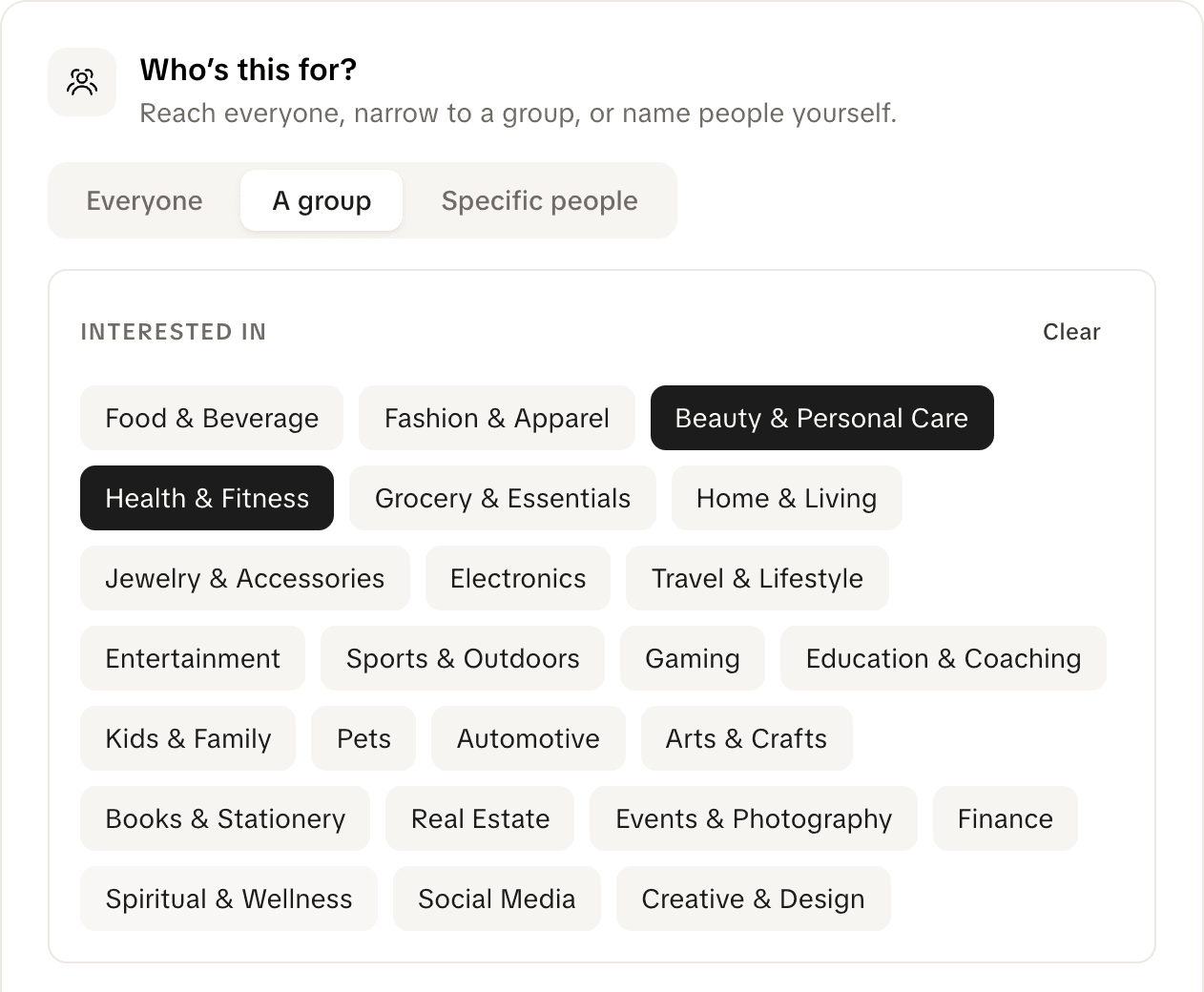
- Click A group.
- Under Interested in, click each interest your campaign is for. A picked interest turns dark. Click it again to unpick it, or click Clear to unpick them all.
- Choose where the work happens.
There are 24 interests, from Food & Beverage to Creative & Design.
How it works. People choose their interests in the Loopearn app when they sign up, under "Add industry interests", and can change them later in Settings › Industry Interests. Your campaign is shown to anyone with at least one of the interests you picked. Picking more interests reaches more people, not fewer.
- Choosing interests is optional for people: anyone who skipped it won't see a group campaign. Neither will people browsing without signing in.
- If you pick A group but don't pick any interests, the campaign is shown to everyone, the same as Everyone.
Specific people
Name the people yourself. Only they see the campaign, wherever they are.
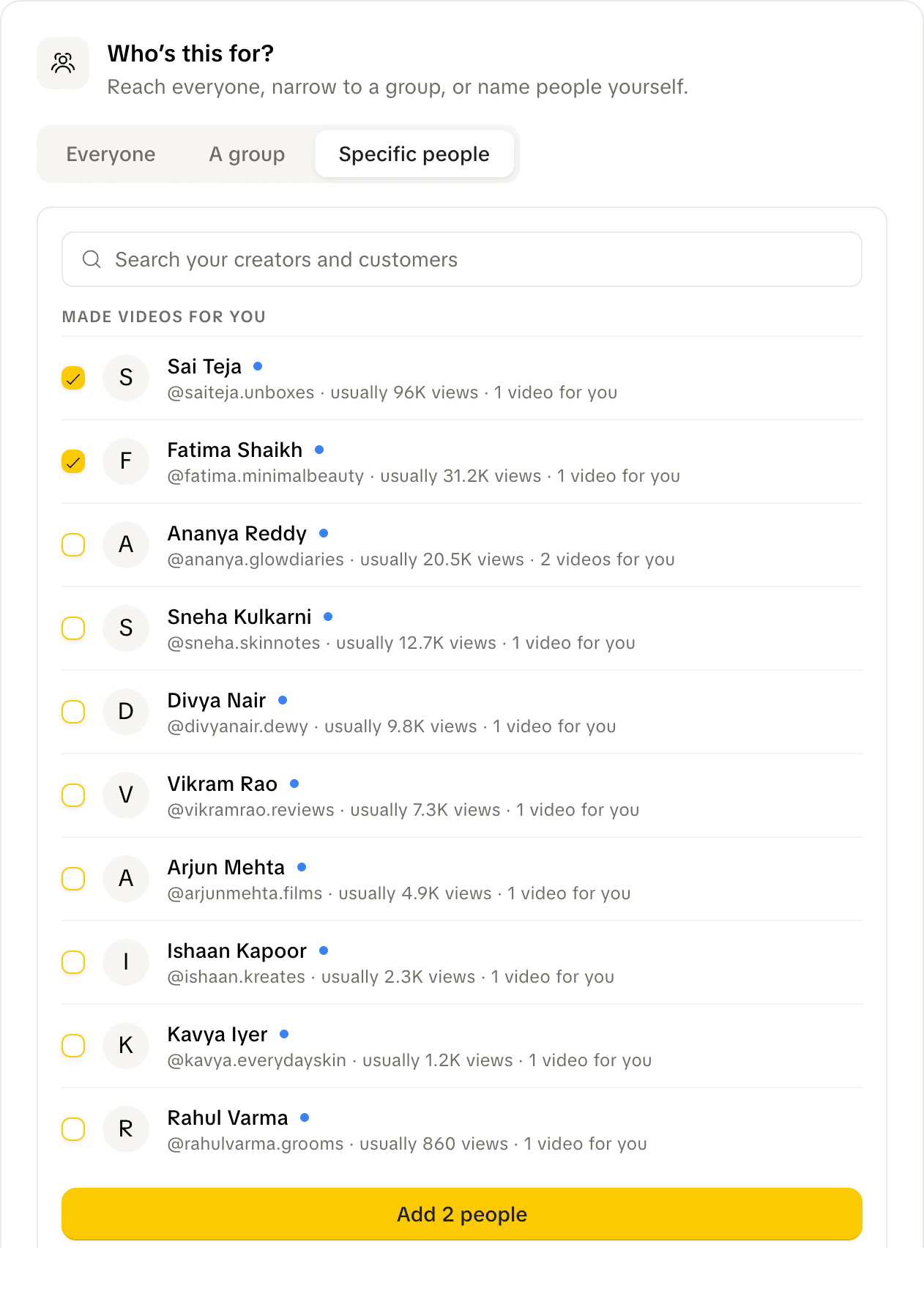
-
Click Specific people.
-
Find the people you want. The list shows two kinds of people who already know you:
- Made videos for you: people who have sent a video to one of your campaigns. Each row shows their username, how many views their videos usually get, and how many videos they've made for you. The best performers come first.
- Your customers: people who have shopped with you through Loopearn. Each row shows how many times they've visited you and how much they've spent with you in total.
To find someone, type part of their name or username in Search your creators and customers.
-
Tick each person you want.
-
Click Add 1 person or Add 2 people (the button counts them). A message confirms how many were added.
Adding someone tells them straight away. Each person gets a notification in the app and an email saying you picked them, with a link to the campaign. This happens as soon as you click Add, even while the campaign is a draft, but they can't send a video until it goes live. Add people close to when you plan to go live.
The people you've added are listed above the search box, each marked Invited. They don't need to accept anything: once the campaign is live, they can see it and send videos.
To take someone off while the campaign is still a draft, click the × next to their name. If you add them again later, they get a new notification. Once the campaign is live, you can't remove people from it.
Good to know:
- A campaign for named people has no IRL or Remote setting.
- People you've banned from your business may still appear in the list, but adding them does nothing: the message will say "0 people added".
- If the list says "Nobody to show yet", nobody has made a video for you or shopped with you through Loopearn yet. Use Find creators to reach new people.
Where the work happens
On Everyone and A group campaigns, the card also asks “Where does the work happen?” A new campaign starts on Remote.
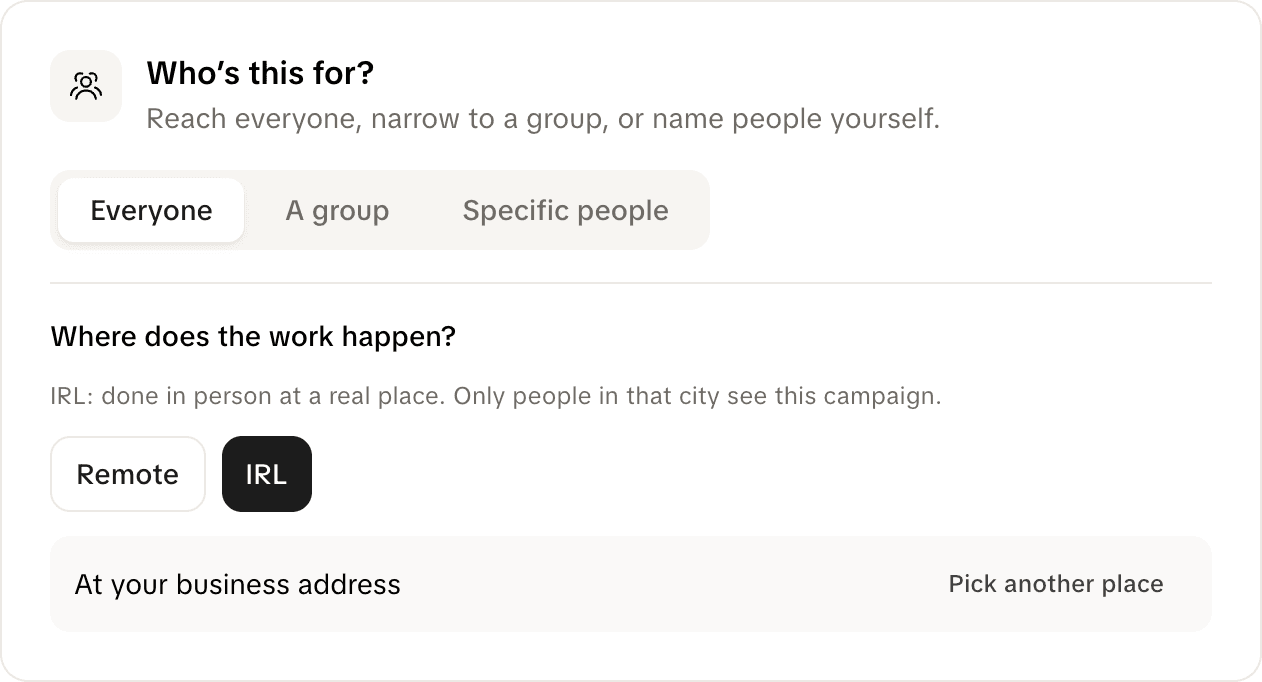
- Remote: the video can be made anywhere. The campaign is listed for everyone in the audience, in every city.
- IRL: the video is made in person, at a real place. The campaign is listed only to people browsing that city in the app. Loopearn doesn't check where someone actually is.
When you pick IRL, the place is your business address, shown as "At your business address". If you have addresses in more than one city, it says "At any of your business addresses", and the campaign is listed in each of those cities. To use somewhere else, such as a shop that stocks your product or an event:
- Click Pick another place. (If your business has no address yet, you go straight to the next step.)
- Under “Where is it?”, type in Search a shop, area or venue and choose the place.
- Check the line under it:
- "Shown in Hyderabad" (or another city) means the campaign will be listed in that city.
- "We're not live in … yet, so nobody will see this" means Loopearn doesn't run in that city yet. Pick a place in a city where Loopearn runs.
To change the place, click Change. To go back to your business address, click Change, then Use my business addresses.
Once the campaign is live, you can't switch between IRL and Remote, and you can't change the place.
Invite people from Find creators
Specific people only lists people who already know your business. To reach other creators on Loopearn:
- Go to Campaign Hub › Participants and click Find creators at the top of the page. It lists creators with a verified social account.
- Find someone. You can search by name or username and filter by platform and minimum followers.
- Click Invite on their row and pick the campaign. You can pick any of your video campaigns that's a draft or live. A campaign they're already on is greyed out.
They get the same notification and email as people you add with Specific people.
An invite only lets someone see a campaign when it's set to Specific people. On an Everyone campaign they could already see it. On an A group campaign, they still need one of your picked interests: someone without one gets the invite but can't see the campaign.
Other campaign types
The “Who's this for?” card only appears on UGC videos and Clipping campaigns. The other types decide their audience in their own way:
| Campaign | Who sees it |
|---|---|
| Test a Product | Everyone, and you choose who joins from the people who apply. If testers buy the product at your shop, it's listed only in your shop's city. |
| Monthly campaign | Remote, or IRL at your business or a place you pick. You choose who joins from the people who apply. |
| Campus Ambassadors | People browsing your business's city. They say which college they're at when they apply, and it may not be one you picked. You choose who joins. |
| Cashback on bills | People browsing any city where your business has an address. |
| Deal Drop | Loopearn hands the deals to people picked at random from everyone active on the app, in any city. You don't choose who. |
Need help? Email support@loopearn.com