Participants
See who joined a campaign and what they've done.
Campaign Hub › Participants lists everyone on Loopearn who has joined one of your campaigns, posted for one, or been invited to one. It's where you see who you work with, how their videos do, and their full history with your business.
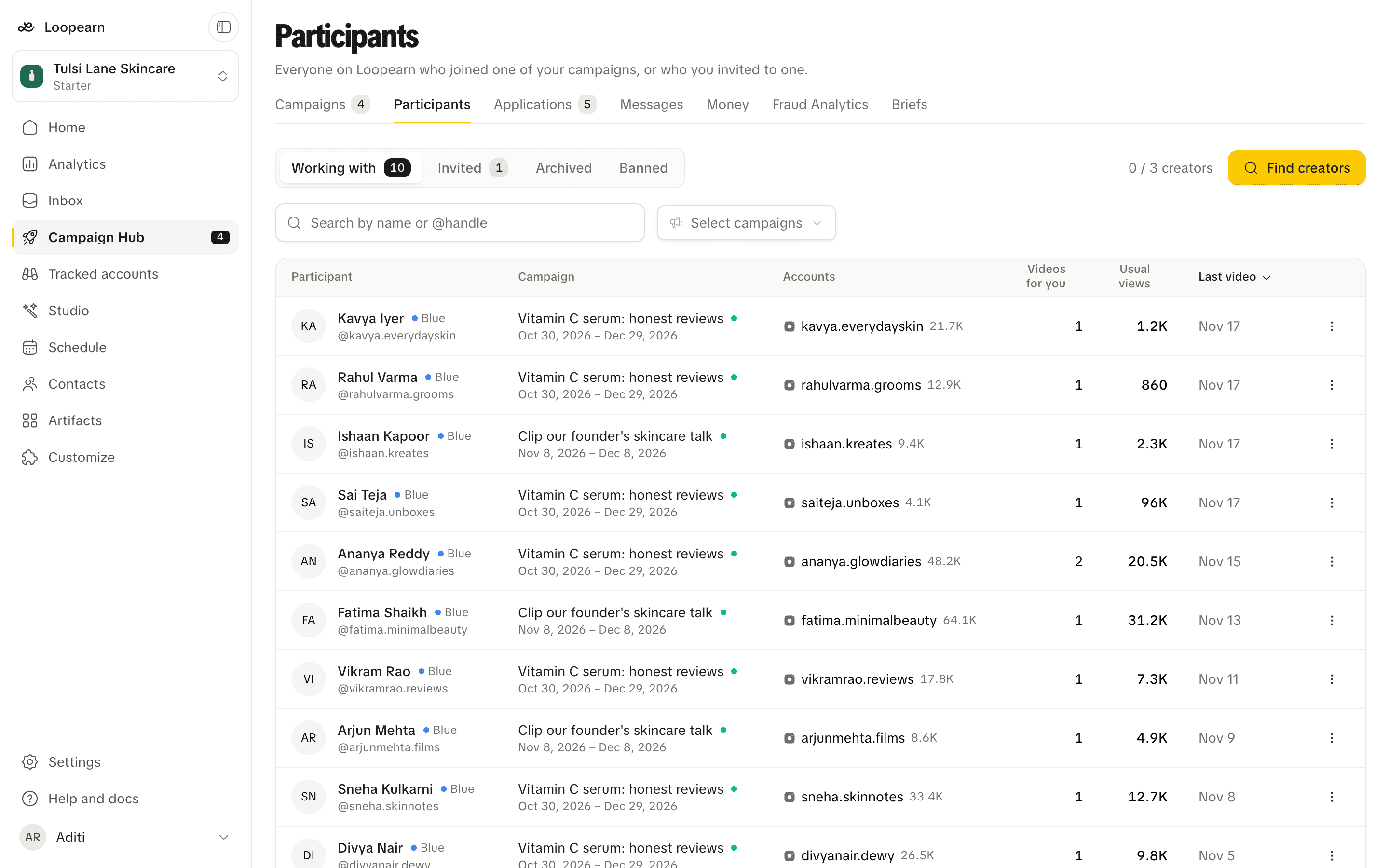
The list
| Column | What it shows |
|---|---|
| Participant | Their name and handle, and their creator tier: Blue, Silver, Gold or Platinum. Loopearn works the tier out every day from their track record across the app. |
| Campaign | Their latest campaign with you. A green dot means it's still running. |
| Accounts | Their verified social accounts and follower counts. |
| Videos for you | How many videos they've sent to your campaigns. |
| Usual views | The median views of their videos for you. It's a better guide than an average, because one viral video doesn't inflate it. It shows — until one of their videos has been measured. |
| Last video | When they last posted for you. |
Click Videos for you, Usual views or Last video to sort by that column. Search by name or @handle, or use the campaign filter to see the people in particular campaigns.
Tabs
| Tab | Who's in it |
|---|---|
| Working with | People who posted for one of your campaigns or accepted your invite. |
| Invited | People you invited who haven't replied yet. |
| Archived | People you archived, and people who declined or were removed without ever posting for you. |
| Banned | People you banned. |
One person's details
Click a row to open that person's details:
- Campaigns: every campaign of yours they're part of, and where they stand in each: joined, invited, declined or removed.
- Accounts: their verified social accounts.
- Interests: what they told Loopearn they're into.
- Recent activity: what they've done for you lately.
- Videos: each video they posted for you, its status (in review, held, approved, paid or rejected), and how its views compare with their usual.
- Track record: how their claims went with you, and with other businesses.
Message opens your conversation with them in Campaign Hub › Messages. Only your team writes there, never LoopyAI.
Archive or ban someone
Open the menu next to a person's name in their details.
- Archive moves them to the Archived tab and changes nothing else. Use it to tidy the list.
- Ban stops them applying to or joining any of your gigs, and stops you inviting them to your campaigns. Applications they have waiting are turned down and open invites are withdrawn. You pick a reason, such as fake views or followers, spam or fraud. Gigs they're already working on keep running. End those from the campaign page.
You can unarchive or unban someone from the same menu at any time.
Find new people
Find creators at the top of the page lists creators on Loopearn who have a verified social account, highest tier first, so you can invite new people to your campaigns. Your plan sets how many creators you can work with at once. The line next to the button shows how many you're using, for example "4 / 10 creators".
Need help? Email support@loopearn.com